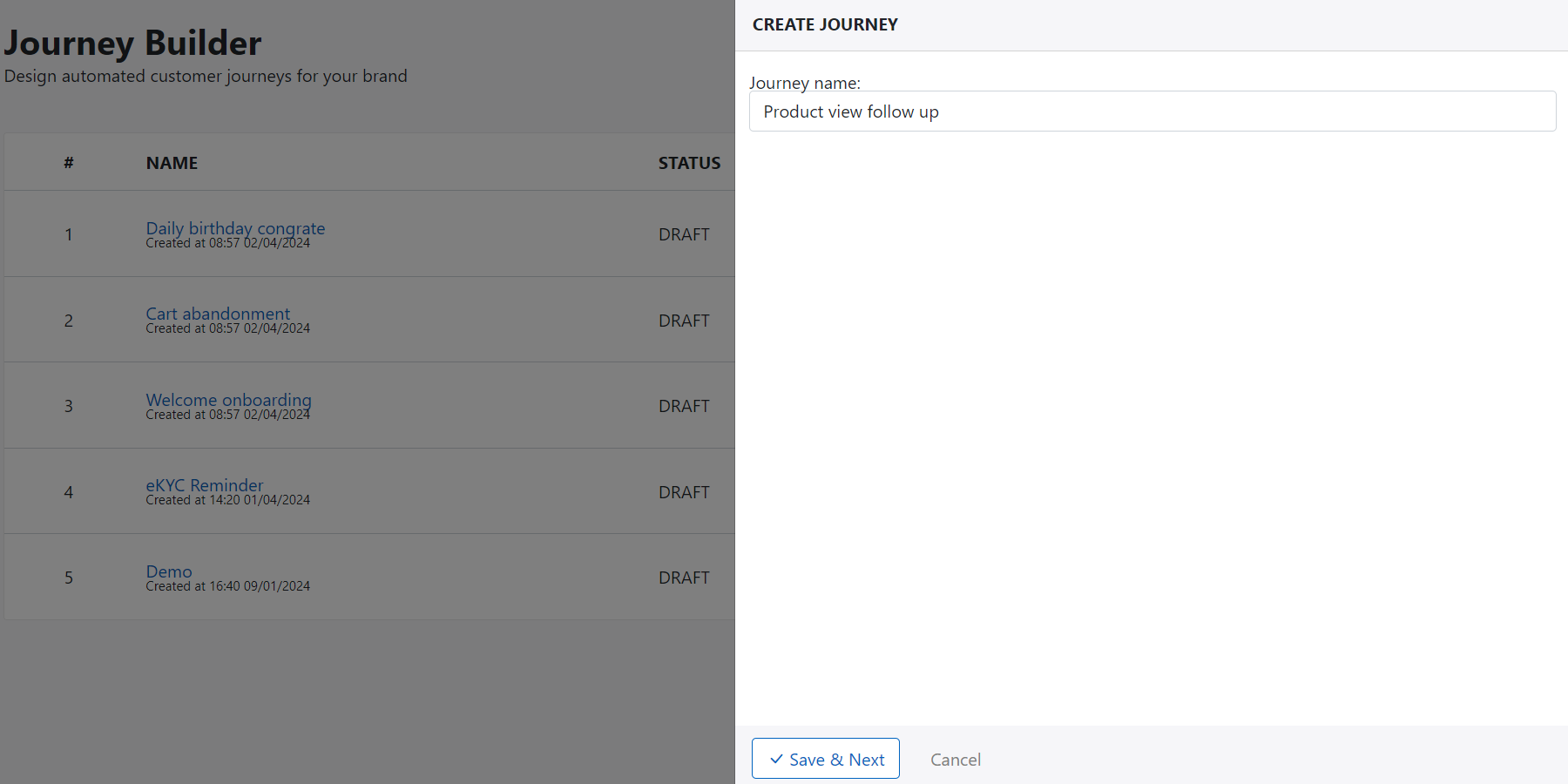
Create journey
Add new journey
Following these step to create new segmentation:
- Go to Campaign from menu
- Click on + Add campaign button
- Select campaign type and fill campaign name
- Click Save & Next to complete process
Journey builder
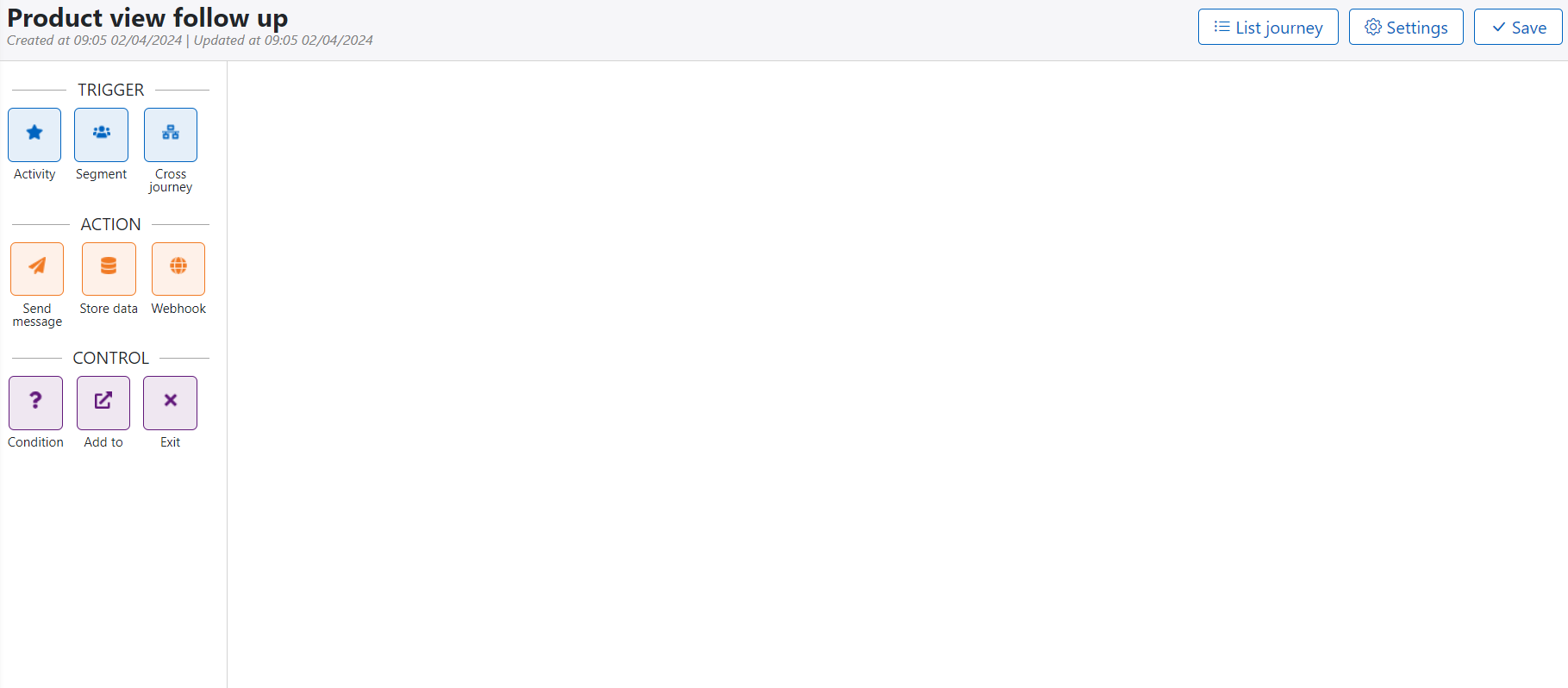
Journey builder is canvas where you design your automation journey to handle and send personalized and automated campaign to customer depending on their activity and engange with your brand.
Variable settings
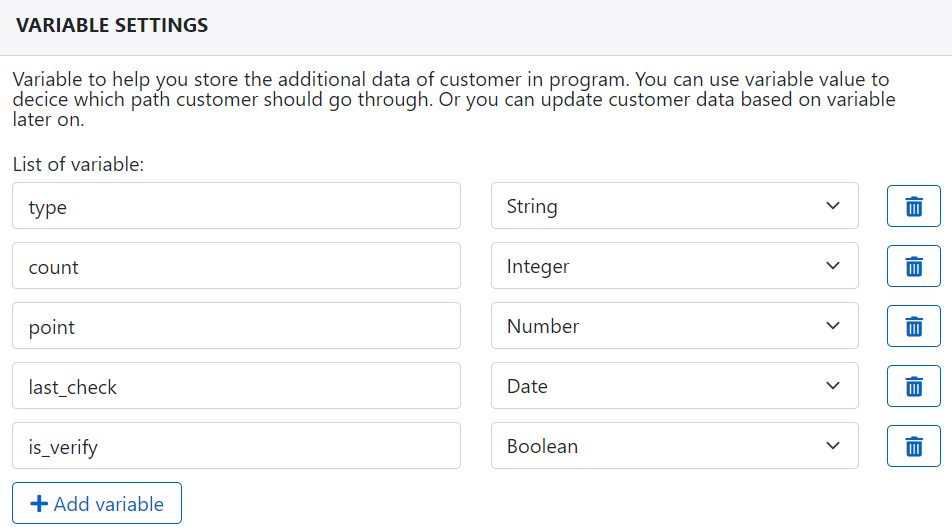
Variable setting help you define variable to decide which path customer should go through in journey.
You can click on Settings button at top header to open variable setting, click + Add variable to add variable one by one. Variable data type value can be string, integer, number, date or boolean.
Trigger
To enter automation journey, cusomer entry have to match the journey trigger setting. The setting can be:
- Activity trigger: Include system activity and custom activity trigger from customer entry
- Segment trigger: Customer should be in segmentation
- Cross journey trigger: Customer can join cross journey from other journey
- Bussiness trigger: Your system trigger activity like price drop, new product arrival...
The following example show the activity trigger:
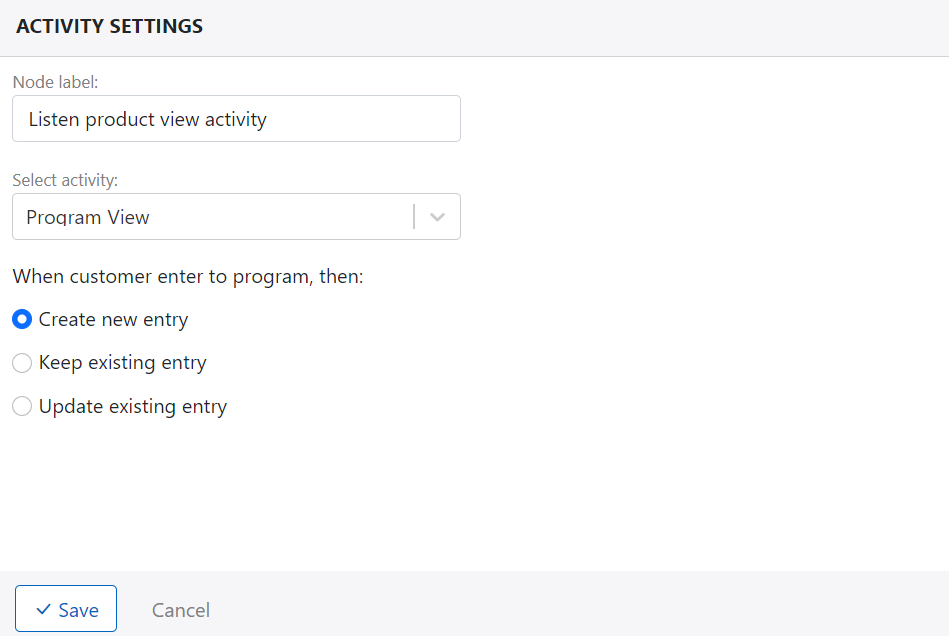
When customer enter to automation journey, platform will check, create or update entry depending on the entry setting:
- Create new entry: everytime customer enter journey, platform will create new entry and don't care if there are existing entries with the same customer in current jouney.
- Keep existing entry: before enter journey, platform will check if there is existing entry or not. If not, platform will create new entry. Otherwise the exsiting entry will be the same until customer exit journey.
- Update existing entry: before enter journey, platform will check if there is existing entry or not. If not, platform will create new entry. Otherwise the exsiting entry will be reset and move to the begnining of journey.
Action
You can define delay time before taking any action node.
There are 4 options in action section of journey builder help to you interact with customer or sync data to external system.
You can drag one of options from action and configure action node by type as below:
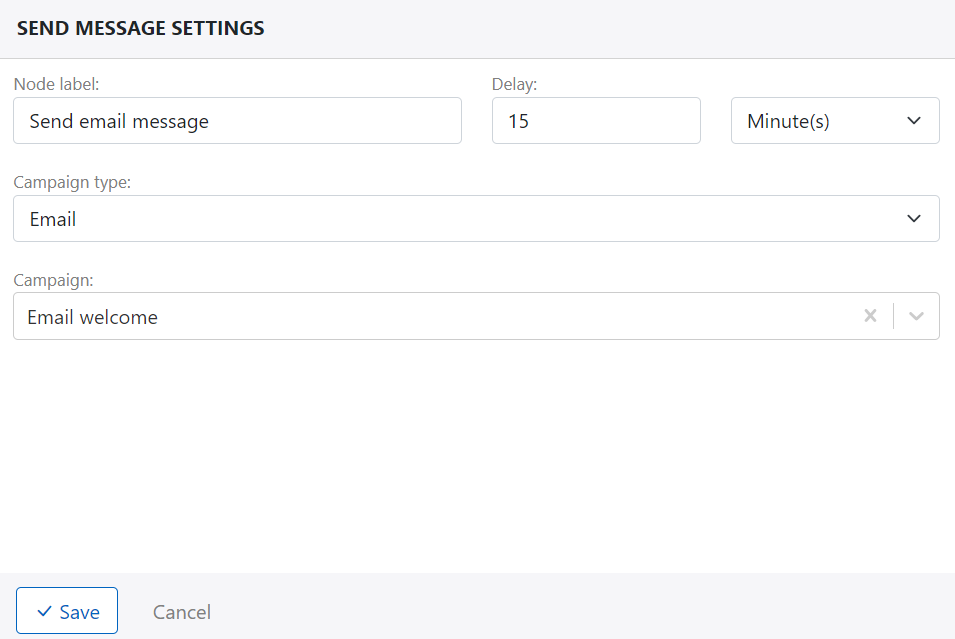
- Send message: Send personalized message to customer using configured channel like email, push notification, sms...
- Store data: Store journey data to journey variables or store data to contact data.
- Webhook: Sync data from journey to external system. The webhook should be one of API app in App menu.
- Custom app: Help you to embed your app into journey builder (Comming soon).
The following example demonstrate the email setting for send message node:
Condition
You can define delay time before taking any codition node to help you wait for data updating in platform from external system.
There are 3 options in condition node type:
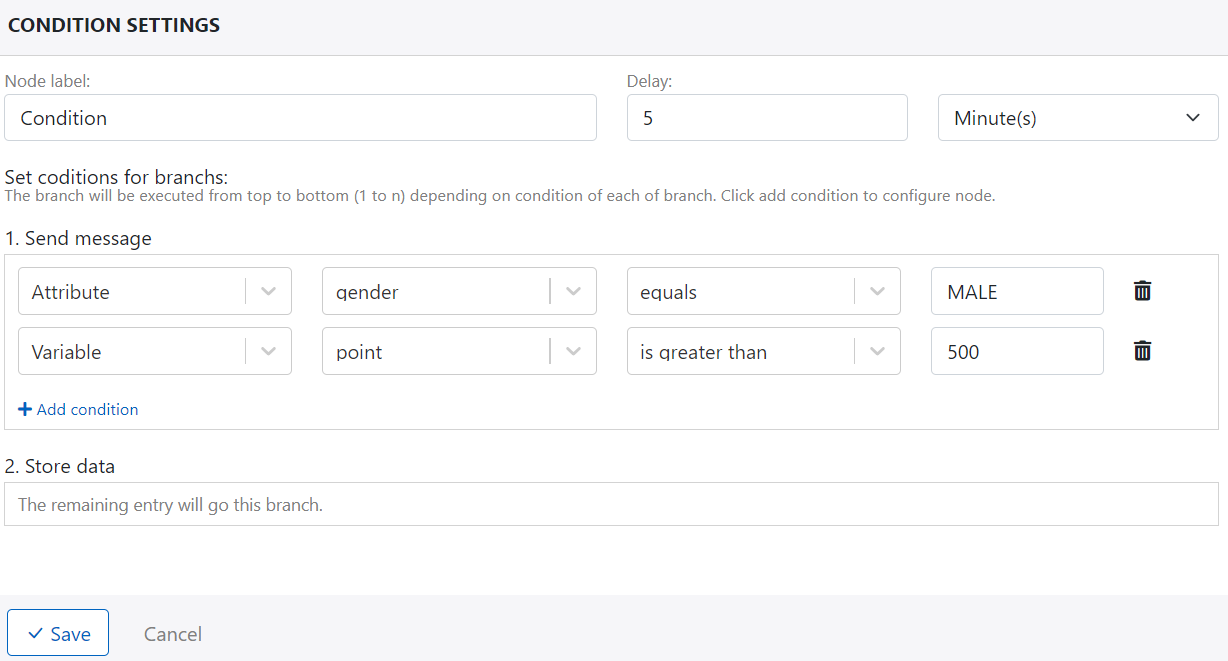
- Condition: Help you to check the customer data before take next action, you can check contact data, activity data or variable data
- Add to: Help you to move customer cross journey due to long journey or notify to related contact like agent, sale, relationship manager, parent, teacher...
- Exit: exit from journey
The following sample demonstrate the setting for condition: