Data import
Import data to platform
For website and mobile app, we have SDK to track the customer profile and their online behaviour. For offline or other system, we also provide server to server API to help you inject data to platform.
The following table describe which type of data can be import to platform:
| Index | Data Type | Description |
|---|---|---|
| 1 | Contact data | Contact information like firstname, lastname, email address, mobile number, age, birthday... |
| 2 | Activity data | Online behaviour or offline behaviour of tracked profile |
| 3 | Custom data | Custom data related to contact or not related to contact. |
Create new import job
You should have right permission to create new import job. Contact your administrator to assign permission.
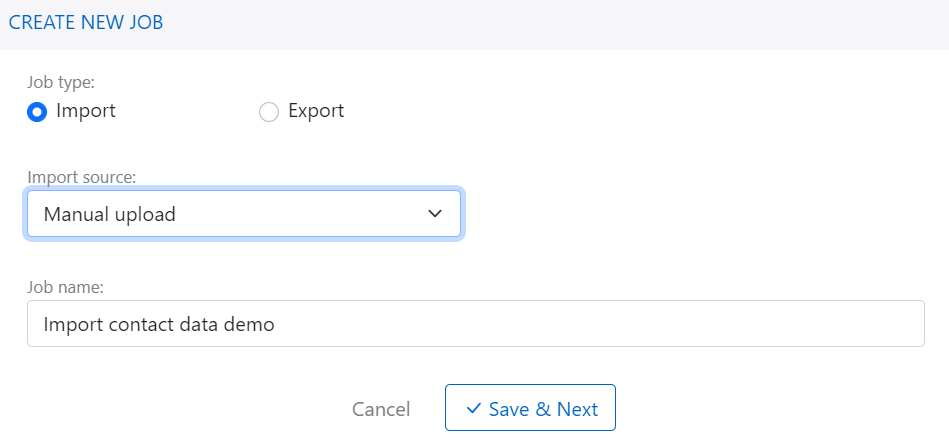
Follow these step to create new import job:
- Go to Import & Export menu
- Click on + Add job button
- Select import type is import and select import source
- Fill import name and click on Save button to complete process
Configure source
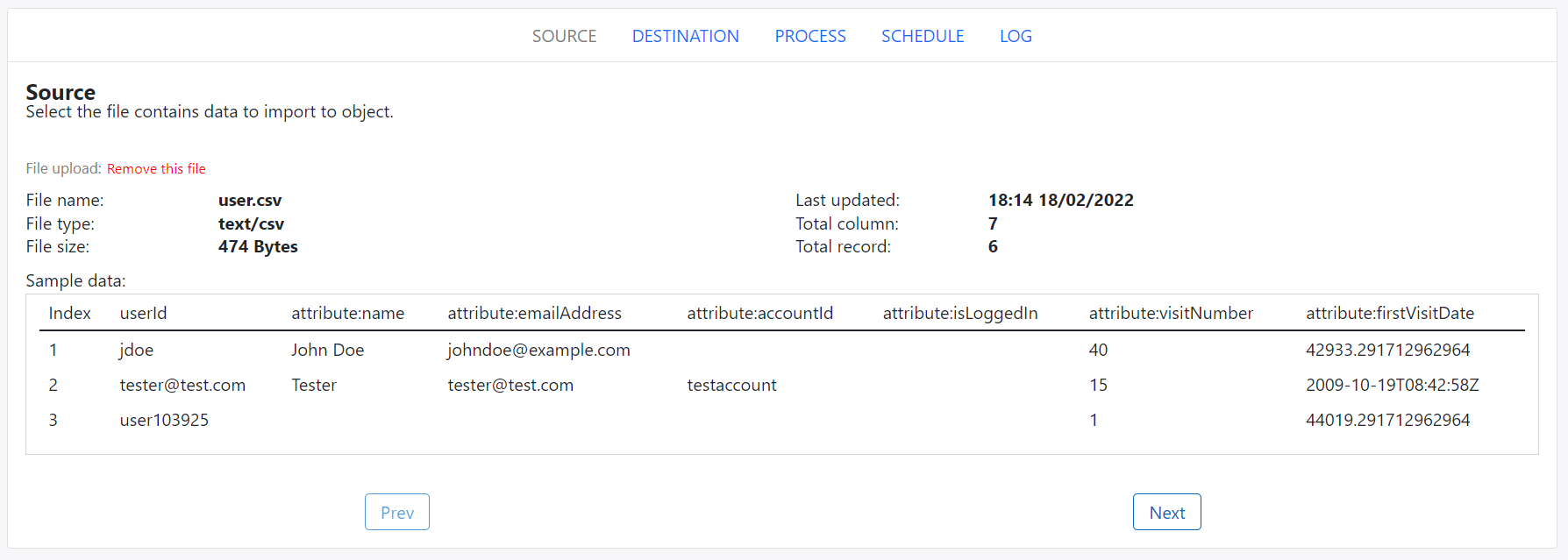
- Go to import job detail in the list job
- Select source tab
- Browse source file and waiting for local loading complete
- View source template file and make sure the corrected info before moving next.
Configure destination
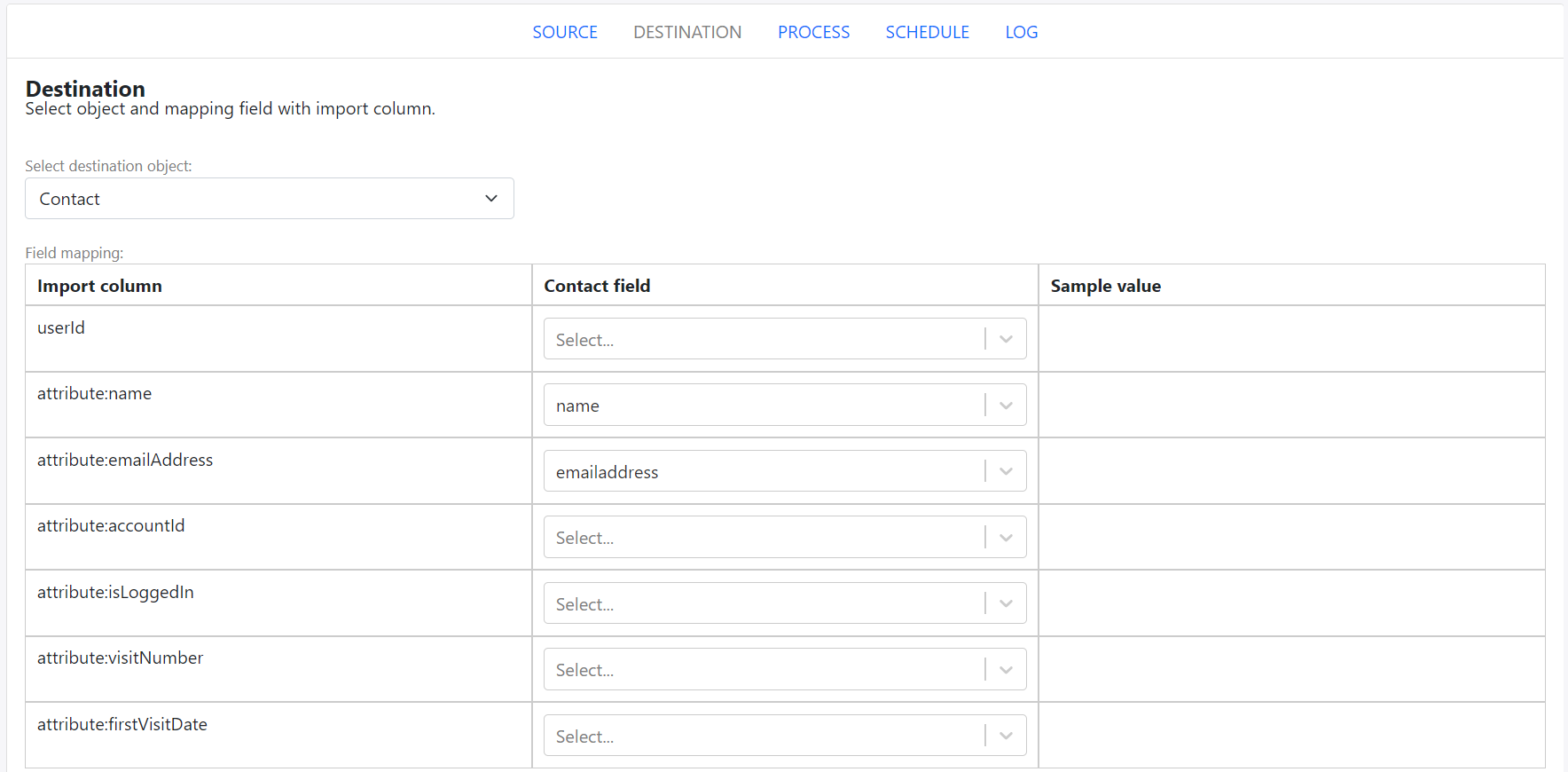
There are two things you have to do in this section:
- Select data to import: It can be contact data, activity data or custom data (for PRE licence edition).
- Select mapping fields to import: For each of incoming column from import file, you select field from data to import. You can skip incoming column.
Configure data processing
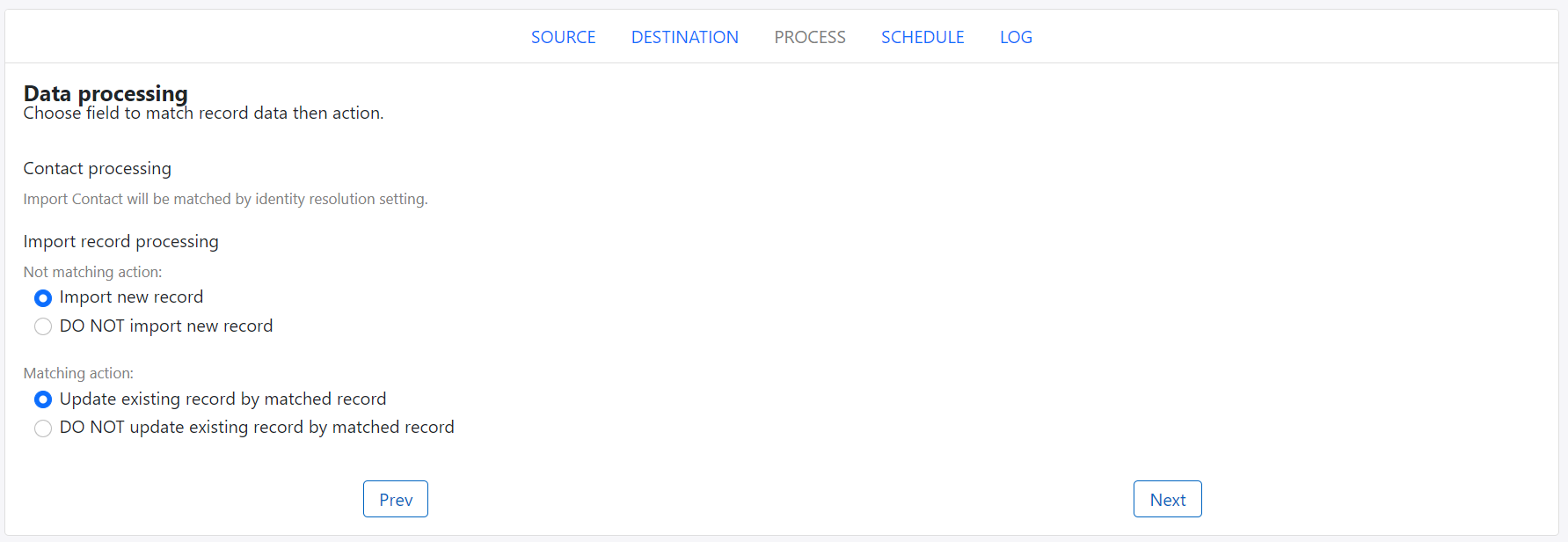
When importing data to platform, you configure import job to handle incoming data:
- Math key processsing: If import contact, you have to follow identity resolution setting. If import custom activity, you do nothing. If import custom data, you have select match key from custom data fields.
- Record action processing: Select action for matching happens and not matching happen. In both case you can configure to import or not import record.
Configure import schedule
After configure job, you schedule time to run job, there are 3 options you can select:
- Run now: After click active button, job will run intermediately
- Run later: Select time and date and to start job
- Run recurving: Job will run recurving with selected frequency (minutely, hourly, daily, weekly or monthly)

View import log
Everytime import job run, platform will create log record to store import information: start time, end time, status, total added records, total updated records, total errored records.